Integrations

BetterUnite + QuickBooks Online

BetterUnite books each donation into QuickBooks Online as a sales receipt, or as a payment record against an invoice, mapped to your service items, deposit accounts, and classes with a global default and per-campaign overrides. Donor-paid, org-paid, and platform fees post as line items or journal entries, amounts sync as intended, gross, or net, and contacts match by name and email with auto-create.

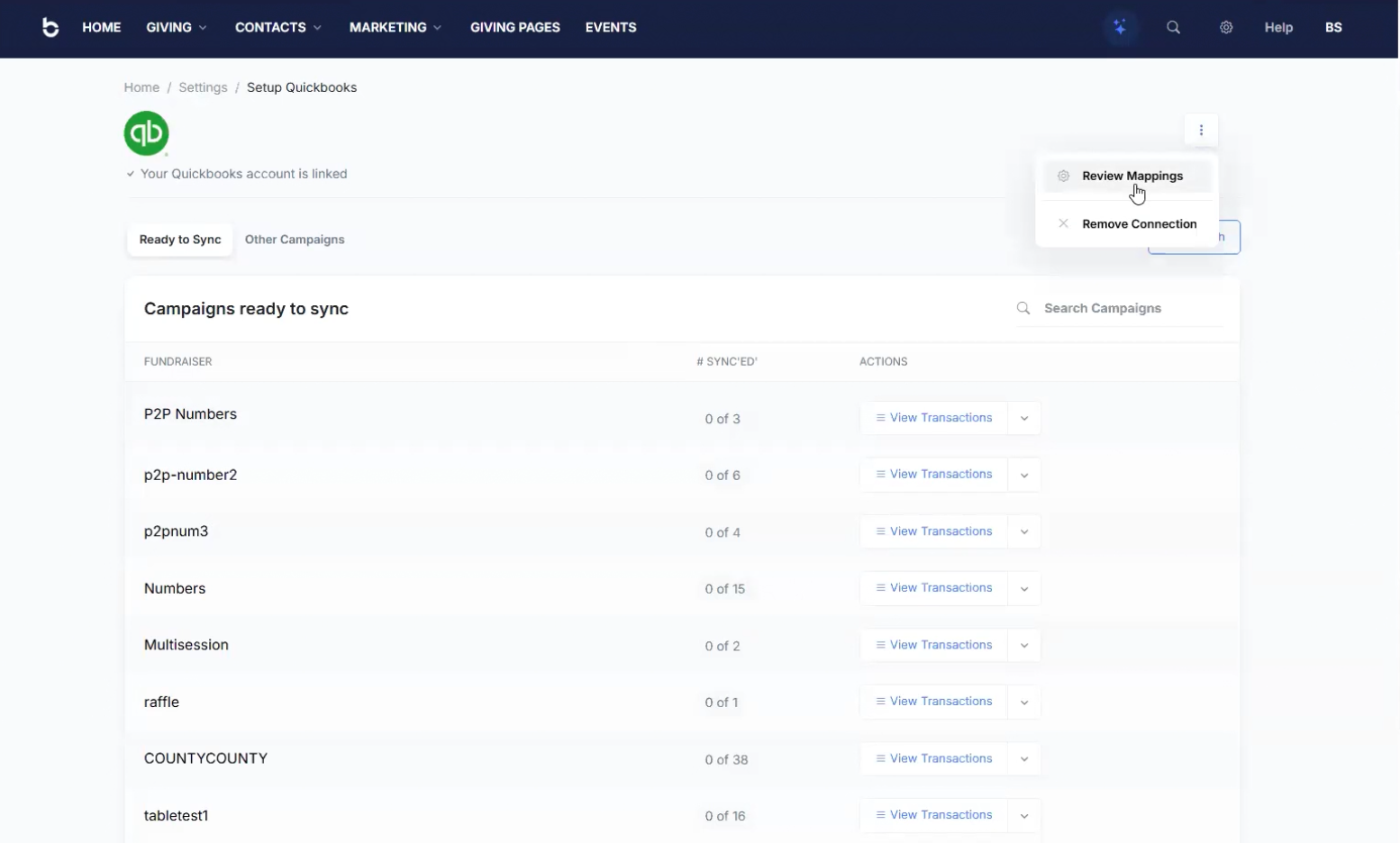
Setup QuickBooks screen with the account linked, a Review Mappings menu, and a list of campaigns ready to sync with View Transactions on each

Built for bookkeepers:
every fee scenario handled.

01

What Syncs

Donations push to QuickBooks Online as sales receipts, or as payment records against invoices for invoice-tracking workflows, with the payer inferred from the donor record.

  • Map service item, deposit account, and class with a global default row plus per-campaign overrides
  • Pull payment types live from your QuickBooks, with per-type overrides
  • Post payment records against invoices when your workflow tracks invoices

02

Fees, Exactly How You Book Them

Donor-paid fee line items are on by default, org-paid and platform service-fee lines are optional, and journal entries are the alternative.

  • Post donor-paid fees as line items with their own service item and class
  • Add org-paid fee and platform service-fee line items when you want them
  • Book fees as journal entries instead, with their own account settings

03

Amounts Your Reconciliation Expects

Intended, net, or gross, with restricted versus unrestricted handling through class mapping.

  • Sync net for exactly what hit the bank, or intended or gross
  • Separate restricted and unrestricted funds through class mapping
  • Include in-kind and stock gifts

04

Matching and Control

Contact matching with a multi-match chooser and auto-create, and a campaign list built for bulk work.

  • Match contacts by name and email, with a multi-match chooser, auto-create, and search-ahead preview
  • Work a campaign list with unsynced counts, status filters, and sync all or individual
  • Exclude with Do Not Sync and bulk $0 exclusion, and change mappings mid-sync

05

Setup Steps

Four steps from connection to continuous sync.

  • Connect QuickBooks Online
  • Set default item, account, and class mappings, then configure fee handling
  • Sync continuously with per-campaign overrides

Frequently Asked
Questions

How do donations appear in QuickBooks?

As sales receipts, or payment records against invoices when needed, mapped to your service items, deposit accounts, and classes, with a global default plus per-campaign overrides.

How are processing fees handled?

Your choice: donor-paid fee line items are on by default with their own service item and class. You can add org-paid and platform service-fee lines, or book fees as journal entries instead.

Which amount syncs, what the donor gave or what hit the bank?

Either: intended, gross, or net, so the sync matches your reconciliation approach exactly.

Will synced receipts attach to the right customer?

Yes. Contacts match by name and email with a multi-match chooser and search-ahead preview, and new customers are auto-created when no match exists.

Can different campaigns map to different accounts?

Yes. Per-campaign overrides for items, accounts, and classes, and a campaign list with unsynced counts and bulk sync controls.

Get started

Give your bookkeeper their weekends back.

Get a demo with your chart of accounts open: your classes, your fee rules, your questions. No pressure, no endless sales cycle.

See pricing first

Request a demo